OpenClaw Telegram Integration: Setup, Groups and Commands
2026-11-04

To connect OpenClaw to Telegram, you create a bot with @BotFather, copy its token, add it to OpenClaw as a channel, send your bot a first message and approve the pairing request. That is the whole path. This guide walks through each step with the exact commands, then covers groups, @mention behavior, Telegram commands, security settings and the checks we run when a bot goes quiet.
I have set this up many times, on a laptop, on a VPS and on managed servers. The steps are short. The places people get stuck are almost always the same, so I point them out as we go.
TL;DR
- Create a bot with @BotFather, then run
openclaw channels add --channel telegram --tokenor place the token in~/.openclaw/openclaw.json. - Send your bot any message, then run
openclaw pairing list telegramandopenclaw pairing approve telegramto authorize yourself. - For groups, add the group chat ID under
channels.telegram.groupsand decide whether the bot needs an @mention withrequireMention. - Use numeric Telegram user IDs in allowlists, never usernames, and keep your DM and group policies restrictive.
- If the bot stays silent, run
openclaw doctorandopenclaw logs --followbefore changing anything else.
Table of Contents
- What you get from OpenClaw on Telegram
- Step 1: Create the bot and get a token
- Step 2: Add Telegram to OpenClaw
- Step 3: Pair your account and verify
- Use OpenClaw in Telegram groups
- Telegram commands in OpenClaw
- Lock it down: access control and security
- Troubleshooting a silent or broken bot
- Perspective
- Skip the server work
- FAQ
- Sources
What you get from OpenClaw on Telegram
OpenClaw supports Telegram bots in both direct messages and groups, and the setup centers on one thing: the bot token (OpenClaw Telegram docs). Once connected, your agent is reachable from any device where Telegram runs. You message it like a contact, and it can use the tools, memory and skills you have configured on the OpenClaw side.

The integration also supports Bot API 10.3 rich messages, including inline buttons and exec approvals (OpenClaw Telegram docs). Exec approvals matter in practice: when the agent wants to run something on the server, you can approve or deny it with a tap instead of opening a terminal.
What you need before you start
- A Telegram account on any device.
- A running OpenClaw instance with shell access, or a managed one where you can edit channel settings.
- A few minutes to create the bot and keep its token somewhere safe.
If you would rather skip server work entirely, jump to the managed option. If you run it yourself, continue below.
Step 1: Create the bot and get a token
Every Telegram bot starts in a chat with @BotFather. Telegram's own tutorial describes it simply: contact @BotFather, issue the /newbot command and follow the steps until you are given a token (Telegram Bot tutorial).
- Open Telegram and search for @BotFather. Check that it carries the verified badge, because look-alike accounts exist.
- Send
/newbot. - Choose a display name. This is what people see in the chat header, and you can change it later.
- Choose a username. It must be unique and end in
bot, for examplemy_openclaw_bot. - BotFather replies with an API token. Copy it.
The token authenticates your bot, not your personal account, and each bot has its own token that can be revoked at any time through @BotFather (Telegram Bot tutorial). Treat it like a password. Anyone holding it can control the bot, so keep it out of screenshots, public repositories and shared chats. If it leaks, revoke it in BotFather and generate a new one.
Step 2: Add Telegram to OpenClaw
You have two ways to give OpenClaw the token. Both end in the same state.
Option A: the CLI
Run this in your terminal:
openclaw channels add --channel telegram --token <bot-token>This is the route I recommend, because it writes the configuration for you and avoids JSON typos (Telegram setup).
Option B: the config file
You can also edit ~/.openclaw/openclaw.json and place the token in the channels.telegram block (Telegram setup). The shape looks like this:
{
  "channels": {
    "telegram": {
      "botToken": "<bot-token>"
    }
  }
}
The exact key names can differ between versions, so check the setup page for your release before copying. Save the file and restart the gateway if your install does not hot-reload.
Polling or webhook
Long polling is the default Telegram transport in OpenClaw. Webhook mode is available if you have HTTPS ingress, by setting channels.telegram.webhookUrl and channels.telegram.webhookSecret (Telegram transports). For a personal agent behind a home router, polling is the right choice: it needs no open port and no certificate. Move to a webhook only when you have a public HTTPS endpoint and a reason, such as lower latency under load.

Step 3: Pair your account and verify
Adding the token does not yet let you talk to the agent. OpenClaw wants you to prove who you are first.
- Send any message to your new bot in Telegram. This creates a pairing request.
- In the terminal, run
openclaw pairing list telegramto see the pending request and its code. - Approve it with
openclaw pairing approve telegram. - Run
openclaw channels status --probeto confirm the connection is healthy.
Those commands come straight from the setup documentation (Telegram setup). After approval, send another message. You should get a reply from your agent within a few seconds, depending on the model you chose.
If the bot does not answer at all, the pairing step is rarely the cause. Look at the token first, then at the troubleshooting section below.
Use OpenClaw in Telegram groups
Groups are where the integration becomes a team tool. A shared project chat can have its own agent session, its own context and its own rules.
Add the bot and the group ID
Add the bot to the group in Telegram, then configure the allowed senders and the group chat ID in channels.telegram.groups. Supergroup IDs usually start with -100 (Telegram setup). The group ID is a number, not the group's name, and the minus sign belongs to it.
Control the @mention requirement
Inside the group entry you can set requireMention: true so the bot only responds when someone tags it. If you use an allowlist policy, the person writing must also be authorized in groupAllowFrom (Telegram access control).
This one setting answers the most common group complaint: the bot only answers when addressed with @. If that is happening and you want natural conversation, check requireMention for that group first. Then check Telegram's privacy mode. When the bot stays silent in groups, the troubleshooting guide points to exactly these two: the mention requirement and privacy mode (Channel troubleshooting). Privacy mode is a BotFather setting, so after changing it, remove and re-add the bot to the group so Telegram applies it.
My rule of thumb:
- Small private group, a few trusted people:
requireMentionoff, so the agent follows the conversation. - Larger or mixed group:
requireMentionon, so the agent does not answer every message and burn tokens.
Sessions, topics and the intro message
Group sessions are isolated by chat ID, and forum topics work by appending the topic ID to the session key (Telegram message behavior). In practice, one group gives you one memory and one thread of context, and each topic in a forum group gets its own. That makes a separate group per project a clean way to keep context from bleeding across work.
By default the bot introduces itself when it joins a group, using the room metadata. If you find that noisy, set channels.telegram.joinIntro: false (Telegram message behavior).
Telegram commands in OpenClaw
OpenClaw registers Telegram's native command menu through setMyCommands, which is the list that appears when you type a slash in the chat. You can add your own entries under channels.telegram.customCommands (Telegram message behavior).
Two habits help here:
- Treat custom commands as shortcuts for prompts you repeat, such as a daily summary or a status check. A short slash command beats retyping a paragraph on a phone.
- Open the menu in your own chat and read what is registered before you invent new ones. The list depends on your version and configuration, so the menu is the reliable reference.
Lock it down: access control and security
A Telegram bot is public by default in one sense: anyone can find its username and message it. What protects you is OpenClaw's access policy, so set it deliberately.
- Use restrictive policies. Set explicit
dmPolicyandgroupPolicyvalues rather than leaving them open. The setup documentation frames security around these two settings (Telegram setup). - Allowlist by numeric ID. Use numeric Telegram user IDs in allowlists, not usernames (Telegram access control). Usernames can be changed or reassigned, and numeric IDs cannot be spoofed that way.
- Guard the token. Store it in the config file with tight file permissions, and revoke it through @BotFather if it ever appears somewhere it should not.
- Review approvals. If your agent can execute commands, use the exec approval buttons instead of granting blanket permission.
An AI agent with shell and file access is powerful, which is the reason to be strict about who can reach it. For a broader look at connecting channels safely, see our guide on secure OpenClaw integrations for teams and developers.
Troubleshooting a silent or broken bot
Work through these in order. They take under ten minutes in total.
- Run
openclaw doctor. It diagnoses configuration and connectivity problems (Channel troubleshooting). - Watch the logs.
openclaw logs --followshows what happens in real time while you send a message from Telegram. - Probe the channel.
openclaw channels status --probetells you whether OpenClaw can reach Telegram with the token you gave it. - Check pairing. If you messaged the bot but nothing happened, list pending requests with
openclaw pairing list telegramand approve the code. - Check the group settings. For a bot that works in DMs but not in groups, verify the group ID, the
requireMentionvalue,groupAllowFromand privacy mode. - Check the allowlist. A username in an allowlist that expects a numeric ID is a classic cause of silence.
A short table of symptoms and first checks:
| Symptom | First check |
|---|---|
| No reply in DM | Pairing approved? Token correct? |
| Replies in DM, silent in group | Group ID in `channels.telegram.groups`, mention rule, privacy mode |
| Only answers when tagged | `requireMention` value for that group |
| Errors in logs about the API | Token revoked or mistyped, network access |
| Works, then stops after a restart | Gateway not running as a service, run `openclaw doctor` |
For a wider checklist that applies to every channel, we keep a walkthrough of six checks for OpenClaw troubleshooting.
Perspective
> Self-hosting OpenClaw is a fine way to learn how an agent works. It is also a real operations job. The Telegram step itself takes five minutes, but the agent behind it has to stay online, keep its memory, receive updates, and sit on a machine you trust. Telegram is only the front door.
>
> When we built ClawBase, we started from a simple observation: people want the assistant, not the server. A bot that answers at 3 PM and is dead at 3 AM because a process crashed is not an assistant, it is a hobby project. That is why every ClawBase agent runs on its own dedicated, encrypted server with persistent memory, daily encrypted backups and automated updates, so the Telegram connection you set up today is still working next month.
>
> We also think Telegram is the right first channel. It is fast on a phone, it supports buttons and approvals, and groups map neatly onto projects. Our design goal is that you paste a token, approve a pairing and get back to the work you wanted the agent for.
>
> *Iosif Peterfi*
Skip the server work
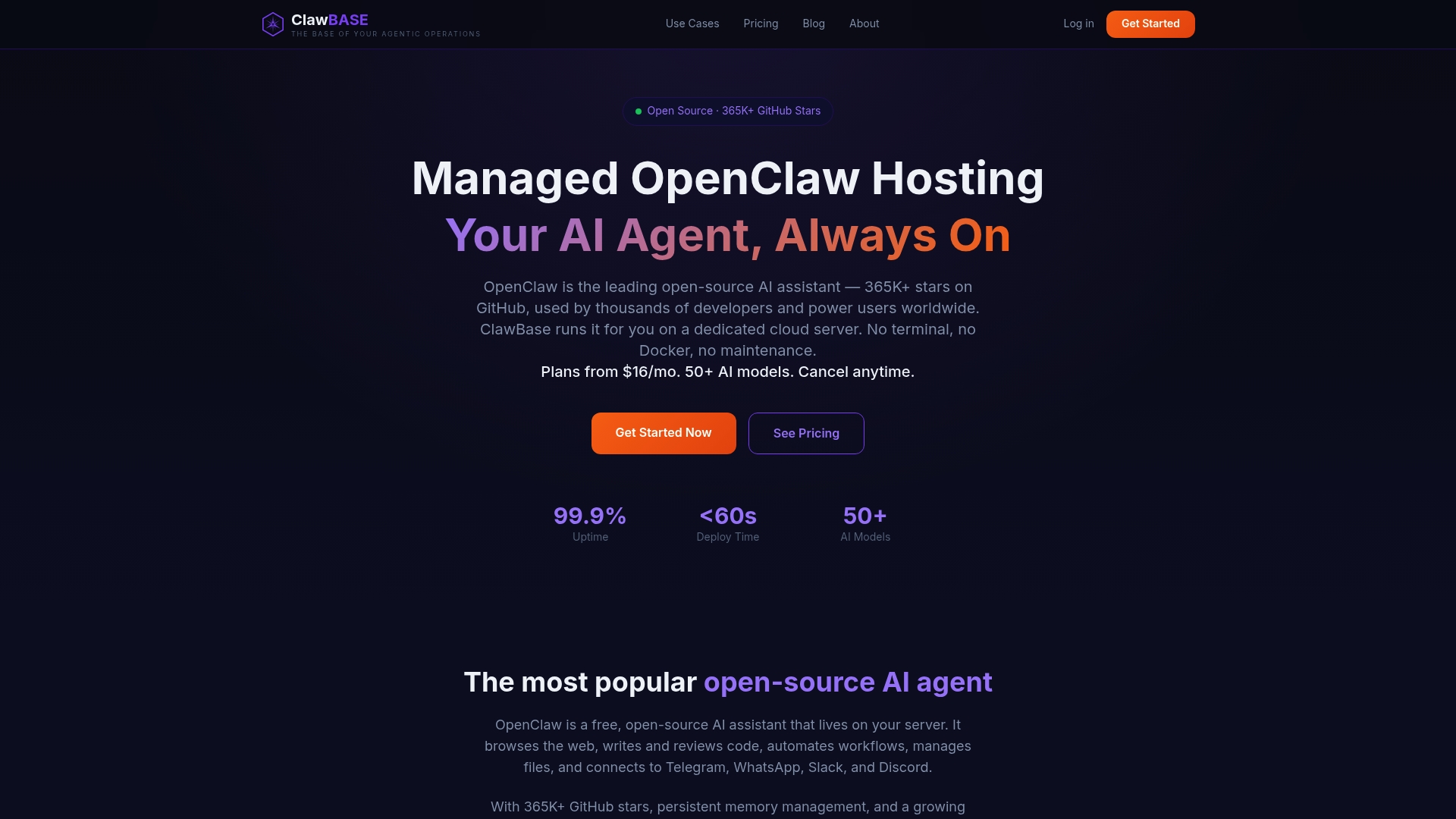
If you want the Telegram connection without managing a machine, ClawBase runs OpenClaw for you with one-click deployment on a dedicated server. You still create your bot with @BotFather and keep the token. We handle the hosting, the updates and the backups, and the same channel works with Discord, Slack and WhatsApp.
Plans start at $16 per month for LITE, with PRO at $33 per month and MAX at $66 per month. Annual billing is $199, $399 and $799 respectively. The entry plan includes a 7-day free trial, and you can pay by credit card or cryptocurrency. See the full plan details or look at the ClawBase homepage.
If you want to compare channels first, our guides cover connecting an AI assistant to Telegram, Telegram bot hosting checks and the Discord quickstart. Our step-by-step tutorial goes deeper on configuring the agent itself.
FAQ
How do I connect OpenClaw to Telegram?
Create a bot with @BotFather using /newbot, copy the token, then run openclaw channels add --channel telegram --token . Message your bot, run openclaw pairing list telegram, and approve the code with openclaw pairing approve telegram . Finish with openclaw channels status --probe to confirm it works.
Why does my OpenClaw bot only reply when I @mention it in a group?
The group entry in your configuration probably has requireMention set to true, which makes the bot respond only when tagged. Turn it off for that group if you want normal conversation. If it is already off and the bot still ignores messages, check Telegram privacy mode in BotFather and re-add the bot to the group.
Do I need a webhook for the Telegram integration?
No. Long polling is the default transport, and it works without a public address or certificate. Webhook mode is optional and needs HTTPS ingress plus the webhookUrl and webhookSecret settings.
Should I use usernames or IDs in the allowlist?
Use numeric Telegram user IDs. Usernames can change hands, while numeric IDs identify the account reliably. Combine them with restrictive dmPolicy and groupPolicy settings.
Sources
- OpenClaw Telegram docs
- Telegram setup
- Telegram transports
- Telegram access control
- Telegram message behavior
- Channel troubleshooting
- Telegram Bot tutorial