4–16 GB RAM, Node 24/26: OpenClaw System Requirements for Developers
2026-09-16

Run OpenClaw on a machine with at least 4 GB of RAM and Node 24 (Node 26 is the recommended default) to get through installation and basic use. For anything beyond casual testing, aim for 8 to 16 GB of RAM, SSD or NVMe storage, and a quad-core CPU. The installer provisions Node automatically when it's missing, and it runs cleanly on macOS, Linux, and Windows through WSL2.
***
> TL;DR:
>
> - For production use, at least 16 GB of RAM and NVMe storage are recommended to handle multiple agents and prevent bottlenecks.
> - CPU performance depends more on single-thread speed than core count, so a modern 2-core VPS can outperform older 4-core systems for OpenClaw tasks.
> - Running on a VPS with dedicated resources or containers is preferable for stability, while shared cloud tiers may cause CPU steal and inconsistent performance.
> - Enabling environment variables like NODE_COMPILE_CACHE and OPENCLAW_NO_RESPAWN can significantly reduce cold start and restart delays on limited hardware.
> - OpenClaw relies on NVMe storage for bursty workloads; slower disks cause response stalls during intensive file operations and automation tasks.
***
Table of Contents
- What Are the OpenClaw System Requirements at a Glance?
- Node, OS, and Installer Paths You'll Actually Use
- How Much Hardware Does Your OpenClaw Setup Actually Need?
- VPS, Bare Metal, Containers, or Raspberry Pi: Which Fits Your Setup?
- Tuning Settings That Cut Cold Starts and Restart Lag
- Why Storage Type Changes How OpenClaw Behaves Under Load
- Which Installer Path Should You Use?
- How Do You Keep the Gateway Off the Open Internet?
- How Do You Spot Resource Problems Before They Take Down the Gateway?
- What Self-Hosting OpenClaw Actually Feels Like Day to Day
- Skip the Server Setup Entirely
- Sources
- FAQ
What Are the OpenClaw System Requirements at a Glance?
Before you provision a server or repurpose an old laptop, it helps to see the numbers side by side. The table below reflects the ranges that show up consistently across OpenClaw's install docs and community hardware guides, adjusted for the kind of workload you're running.
| Resource | Minimum | Recommended | Production |
|---|---|---|---|
| CPU | 2 cores | 4 cores, strong single-thread speed | 4 to 8+ cores |
| RAM | 2 to 4 GB | 8 GB | 16+ GB |
| Storage | 20 GB SSD | 40 GB NVMe | 80 to 160+ GB NVMe |
| OS | Linux, macOS | Linux, macOS, Windows/WSL2 | Linux (bare metal or VPS) |
| Node.js | 22.19+ | 24.x (26 recommended) | 24.x or 26.x |
CPU choice matters more than core count for most OpenClaw work. Agent orchestration and CLI responsiveness lean on single-thread speed, not parallelism, so a modern 2-core VPS often outperforms an older 4-core box. RAM is where budgets get tested: community hardware guides put the floor at 2 to 4 GB for basic use, but push to 8 GB once you're running routine automation, and 16 GB or more once other people depend on the deployment.
Windows support runs through WSL2 rather than native PowerShell for anything beyond quick experiments, and the installer handles Node provisioning on all three platforms automatically. Building from source requires pnpm on top of Node.
Node, OS, and Installer Paths You'll Actually Use
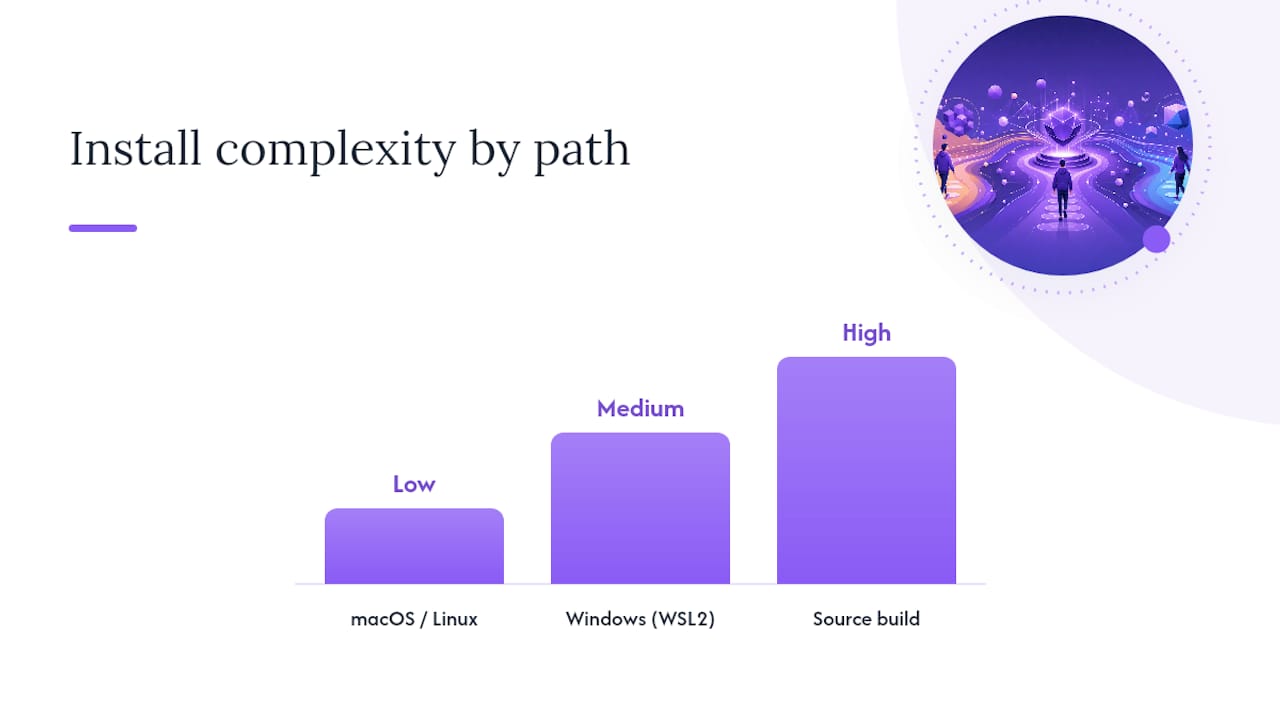
OpenClaw supports Node 22.19 and newer, with Node 24.x as the working baseline and Node 26 as the version the official install guide now recommends. You don't need to hunt down and install this yourself in most cases. The installer script detects your Node version and provisions a compatible runtime automatically if nothing suitable is present, which removes a step that trips up a lot of first-time installations on other Node-based tools.
Your options for getting OpenClaw running:
- macOS and Linux: run the installer script directly, or install globally with
npm -g install, both of which trigger the same Node-provisioning check. - Windows: use the native Hub app for a GUI-driven setup, the PowerShell installer for scripted deployments, or run the Gateway inside WSL2, which the docs recommend for stability over native Windows execution.
- Building from source: requires pnpm specifically, since the OpenClaw monorepo uses pnpm workspaces; npm alone won't resolve the dependency graph correctly.
- Docker and Nix: both exist as alternative paths for teams that already standardize on containerized or declarative environments, trading a bit of setup friction for reproducibility.
WSL2 isn't just a workaround for Windows users. It's the platform the team actively tests against, so treat it as the primary Windows target rather than a fallback.
How Much Hardware Does Your OpenClaw Setup Actually Need?
The honest answer depends entirely on what OpenClaw is doing for you, not on some universal spec sheet. Here's how the numbers break down by realistic scenario, from a laptop experiment to a production deployment other people rely on.
- Local laptop, just testing. Modest CPU cores and several gigabytes of RAM will get OpenClaw running on a recent Node version without complaint, as long as you're not also compiling code or running a browser session in the background. It's usable, not comfortable. You'll notice cold starts and occasional lag if multitasking heavily.
- Single VPS, text-only agent. A VPS instance with a couple of virtual CPU cores, several gigabytes of RAM, and moderate NVMe storage handles a single conversational agent doing file management or basic integrations without strain. This is often enough for solo developers running a personal assistant that isn’t using heavy browser or local model workloads.
- Browser automation or local LLM relay. When OpenClaw is driving a headless browser or routing requests to a locally hosted model, more CPU cores and RAM become necessary, and NVMe storage is strongly recommended. Browser automation requires additional memory for bursty workloads, and slower storage types may become bottlenecks.
- Multi-agent, team, or production use. Plan for multiple CPU cores, sufficient RAM to ensure stability, and NVMe storage. In production, consider separating the database or file store onto independent volumes or hosts to reduce I/O contention and facilitate backups.
- GPU: almost never required. A GPU is only needed if hosting large local language models yourself. Regular OpenClaw usage and routing to hosted providers run on CPU alone. If you’re not self-hosting models, prioritize RAM over GPU.
The pattern across all five tiers: RAM headroom saves you more grief than raw CPU count. A tight-minimum RAM allocation can feel fine during idle periods and then choke the moment a burst workload triggers swap and garbage collection.
VPS, Bare Metal, Containers, or Raspberry Pi: Which Fits Your Setup?
Your hosting choice shapes both cost and reliability more than any single spec bump does.
- VPS or cloud instances win on ease and disaster recovery. Snapshots let you roll back a broken update in minutes, and most providers let you resize RAM or CPU without a full reinstall.
- Bare metal delivers the best raw performance per dollar and avoids the shared-tenancy overhead of virtualized hosts, but you own every patch, backup, and hardware failure yourself.
- Containers give you portability between environments and make it trivial to replicate a working OpenClaw setup across staging and production, at the cost of a slightly more involved initial configuration.
- Raspberry Pi and other ARM boards work for light, single-agent use at minimal cost, but expect to tune more aggressively and accept slower cold starts than an equivalent x86_64 VPS.
Whichever route you pick, watch for vCPU steal on budget cloud tiers. Cheap shared instances oversell CPU time, and a "2 vCPU" listing can behave like half a core during someone else's noisy workload. For anything running agent automation on a schedule, a dedicated-thread plan from a mid-tier provider beats a cheaper bur stable instance almost every time. Also budget storage for backups from day one. It's a smaller line item than it sounds, and skipping it is the single most common regret operators report after a failed update.
Tuning Settings That Cut Cold Starts and Restart Lag
Two environment variables do most of the heavy lifting on small hosts. NODE_COMPILE_CACHE stores compiled JavaScript bytecode on disk so the Gateway doesn't recompile the same modules on every restart, which matters a lot on a 2 vCPU box where compilation eats a visible chunk of startup time. OPENCLAW_NO_RESPAWN prevents the process from handing itself off to a child process on restart, a behavior that's mostly invisible on beefy hardware but adds real latency on constrained instances.
Pair those with sane systemd settings in your service unit:
Restart=alwaysso the Gateway comes back after a crash without manual intervention.RestartSec=2to avoid restart storms hammering a struggling host.TimeoutStartSec=90to give Node enough runway to provision and initialize on slower disks.- Set
NODE_COMPILE_CACHEto a path on your fastest local volume, not a network mount.
Pro Tip: *If you're running on a 2 vCPU VPS, enable both environment variables from day one rather than waiting for a slow restart to notice the problem. The VPS runbook treats this as baseline configuration, not an optimization for later.*
Why Storage Type Changes How OpenClaw Behaves Under Load
NVMe isn't a nice-to-have here. It's the difference between an agent that responds instantly to a burst of file operations and one that stalls mid-task. SATA SSDs and spinning disks introduce latency that shows up specifically during bursty automation, the exact workload pattern OpenClaw generates when it's writing logs, managing files, or juggling multiple tool calls in sequence.
- Set Docker log rotation limits (
max-sizeandmax-file) in yourdocker-compose.yml. Default logging drivers will happily fill a disk over weeks of uninterrupted operation. - Size storage to the workload: 20 GB covers a light single-agent setup, 40 to 80 GB fits routine multi-agent use, and 160 GB or more makes sense once you're storing significant file history or media through integrations.
- VPS sizing guides flag disk I/O and uncontrolled Docker logs as two of the more common root causes behind seemingly random Gateway slowdowns.
Which Installer Path Should You Use?
openclaw onboardis the guided path most developers should start with. It walks through Node provisioning, configuration, and first launch in one flow.npm -g installsuits anyone who already manages Node centrally and wants OpenClaw as a global package without the interactive onboarding steps.- Windows Hub app or PowerShell installer cover native Windows deployment, though WSL2 remains the more stable target for anything beyond quick evaluation.
- WSL2 gateway setup is the recommended production path for Windows-based operators, since it runs the Gateway in a Linux environment the team actually tests against.
- Docker or Nix work as alternatives when you need reproducible, declarative environments, trading some setup complexity for consistency across machines.
Only the source-build path requires pnpm specifically. Every installer route above handles Node provisioning on its own.
How Do You Keep the Gateway Off the Open Internet?
The Gateway owns state, which makes its exposure a real security decision rather than a checkbox. Default to binding it to loopback and reaching it through an SSH tunnel or Tailscale Serve rather than opening a public port.
- Bind to
127.0.0.1by default and never expose the Gateway port directly to the internet. - If you need LAN or tailnet access, set a
gateway.auth.tokenor delegate authentication to a reverse proxy in front of it. - Harden SSH itself: disable password auth, use key-based login, and restrict access with a firewall rule limiting inbound connections to known IPs.
- Treat any exposed Gateway as a target; the VPS is your source of truth, and losing control of it means losing control of everything downstream.
How Do You Spot Resource Problems Before They Take Down the Gateway?
Most OpenClaw failures announce themselves before they become outages, if you know where to look.
- Check
dmesgfor out-of-memory kills when the Gateway restarts without an obvious cause. - Run
toporhtopto catch single-thread CPU saturation, the pattern that shows up during heavy automation bursts. - Use
iostatto spot high iowait, a strong signal your storage is the bottleneck rather than CPU or RAM. - Check
docker psand container log sizes directly if you're running OpenClaw in containers; unrotated logs are a frequent, quiet disk killer.
Fixes tend to be direct once you've diagnosed the issue: add RAM if you're seeing OOM kills, rotate logs if disk usage is climbing, move volumes to NVMe if iowait is high, and enable NODE_COMPILE_CACHE if restarts feel sluggish. Track free RAM and disk growth as your two early-warning numbers. Most production incidents trace back to one of them.
What Self-Hosting OpenClaw Actually Feels Like Day to Day
Self-hosting OpenClaw is genuinely approachable once the install finishes, but the ongoing operational load is where people underestimate the commitment. Watching disk usage, rotating Docker logs, patching Node versions, and rebuilding a systemd unit after a bad update are all small tasks individually. Stacked over months, they add up to a part-time sysadmin job nobody signed up for.
That gap is exactly where managed hosting earns its place. ClawBase runs OpenClaw on dedicated, encrypted servers with 99.9% uptime, persistent memory management, and routed access to more than 50 AI models, without asking you to touch a systemd unit or a Docker log ever again. If your priority is building automations and workflows rather than babysitting infrastructure, managed hosting removes the entire operational layer this article just walked through. If you enjoy owning that layer and want full control over tuning, self-hosting on a well-sized VPS remains a solid, defensible choice.
Skip the Server Setup Entirely
Everything above, the Node versions, the systemd tuning, the storage sizing, the security hardening, is work ClawBase already handles on your behalf. Some providers deploy OpenClaw on dedicated encrypted servers with easy deployment options, daily encrypted backups, automated updates, and pre-configured connections to popular communication platforms.
If provisioning your own VPS and tuning environment variables isn't how you want to spend a weekend, ClawBase's managed hosting gets you a running, persistent AI assistant without the sysadmin overhead. Browse the OpenClaw use cases to see which workflows fit your situation, then start a trial to see your own agent running within minutes instead of hours.
Sources
For anyone provisioning a server today, the official install guide, the GitHub install docs, and the VPS runbook cover the canonical setup and hardening steps referenced throughout this guide. Developers building custom integrations may also find AmmarAI's developer onboarding resources useful for code-level patterns.
- Docs
- Install — openclaw docs (GitHub)
- Docs2
- OpenClaw Hardware Requirements: Minimum, Recommended, and Production Specs — Sfailabs
FAQ
How Much RAM Is Needed for OpenClaw?
Two to 4 GB covers basic testing, 8 GB is comfortable for routine automation, and 16 GB or more is the recommended floor for production deployments with multiple agents or team usage.
What Is the Best Operating System to Run OpenClaw On?
Linux is the most tested and stable platform, with macOS close behind; Windows users should run the Gateway through WSL2 rather than native PowerShell for anything beyond quick experimentation.
What Computer Specs Are Needed to Run OpenClaw?
A minimum setup is 2 CPU cores, 4 GB of RAM, and SSD storage on Node 24; recommended setups add NVMe storage and 8 GB of RAM, while production environments call for 4 to 8 or more cores and 16+ GB of RAM.
Does OpenClaw Need a GPU?
No. A GPU is only necessary if you're hosting large language models locally yourself; standard OpenClaw operation and multi-model routing to hosted providers run entirely on CPU.
Does the OpenClaw Installer Handle Node.js Setup Automatically?
Yes. The installer detects your Node version and provisions a compatible runtime automatically when one isn't already present, and only building from source requires installing pnpm separately.