Manage Files with an AI Assistant: 2026 Guide
2026-07-16

Managing files with an AI assistant means using intelligent software to sort, rename, and organize documents automatically based on file content, metadata, and your own plain-English instructions. The standard industry term for this practice is AI-assisted file management, and it covers everything from bulk renaming PDFs by client name to automatically routing downloads into project folders. Most professional-grade tools now support preview-first workflows that let you review up to 5,000 proposed file changes before anything moves. That single capability separates genuinely useful AI file organization from tools that create more chaos than they solve.
How to manage files with an AI assistant: tools and setup
The right tool depends on what your files contain and how much privacy you need. Professional-grade AI file management tools support three main AI modalities: content reading via OCR, metadata analysis, and visual recognition. That means the same tool can read the text inside a scanned invoice, check a file's creation date, and recognize whether an image is a receipt or a contract.

Cloud-based large language models (LLMs) offer the most powerful content analysis, but they send file data to external servers. Local-first models like Mistral 7B and Gemma 3 keep everything on your machine, which matters if you handle contracts, medical records, or client financials. The choice between cloud and local AI is not just a technical preference. It is a privacy decision with real consequences.
Before you run any AI sorting job, you need three things in place:
- Folder selection: Tell the tool exactly which directories to watch or process. Never grant access to your entire drive on the first run.
- Sorting prompts or rules: Write plain-English instructions describing how you want files grouped, named, or moved.
- Preview mode enabled: Confirm the tool shows you a proposed plan before executing any changes.
The table below maps the key feature categories to watch for when evaluating any digital assistant for files.
| Feature category | What to look for |
|---|---|
| Content reading | OCR support, multi-language text extraction |
| Preview-first workflow | Review plan before execution, batch limit up to 5,000 files |
| AI model options | Cloud LLM vs. local model (Mistral 7B, Gemma 3) |
| Access controls | Scoped directory access, not full-drive permissions |
| Batch processing | Configurable batch size with undo or rollback option |
How do you write AI rules and prompts for file organization?
Intent-based file organization produces better results than rule-based systems built on brittle Boolean logic. Instead of writing IF filename contains "invoice" AND date > 2024 THEN move to /Finance/2024, you describe the outcome: "Sort all invoices by client name and year into separate folders." The AI interprets ambiguous filenames, reads document content when needed, and makes judgment calls that a static rule cannot.
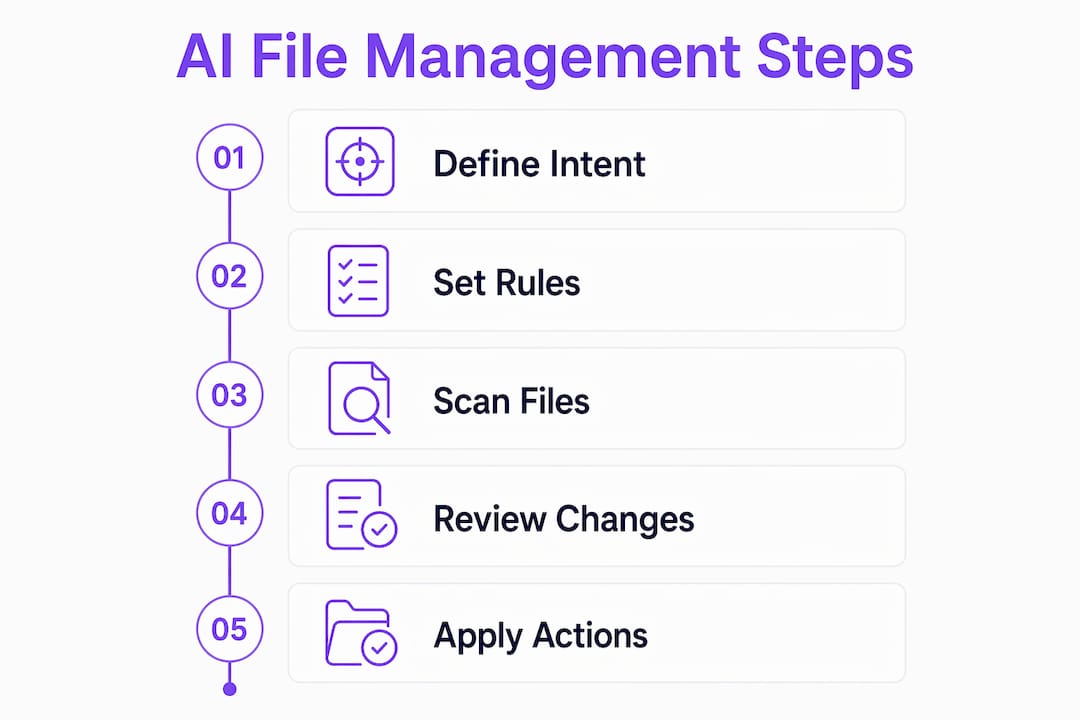
Writing effective prompts follows a simple pattern. Start with the sorting dimension (client, date, document type, project), then add any naming convention you want applied, and finish with an exception rule for files that do not fit. A prompt like "Group contracts by client name, rename each file to include the signing date, and flag anything you cannot categorize" gives the AI enough context to act and enough constraint to stay predictable.
AI rule builders let you save these prompts as repeatable tasks. Once saved, they run without consuming additional AI credits on each execution. That matters for professionals who process hundreds of files weekly. Use content reading selectively: enable it for PDFs and Word documents where the filename tells you nothing, and skip it for files with structured naming conventions where metadata analysis is faster and cheaper.
- Define your sorting dimension. Choose one primary axis: client, project, date, or document type.
- Write the outcome, not the condition. Describe where files should end up, not the logic to get there.
- Set a naming convention. Specify date formats, separators, and abbreviations you want in filenames.
- Add an exception bucket. Tell the AI where to put files it cannot confidently categorize.
- Save as a reusable rule. Lock in the prompt so future runs do not require manual input.
Pro Tip: *Combine deterministic rules for predictable files (e.g., all .csv exports go to /Data/Raw/) with AI-driven sorting for ambiguous cases. This hybrid approach cuts AI processing time and reduces the chance of misfiled documents.*
What are the best safety practices for AI file management?
Most users fail by prioritizing speed over safety. Adopting preview-first workflows where AI-generated plans are fully reviewed before execution is the industry standard, not an optional extra. The AI acts as a plan generator. You act as the approver. That human-in-the-loop structure prevents irreversible data errors.
> Treating AI as a blind executor is the fastest way to lose files you cannot recover. The correct mental model is that the AI drafts a filing plan and you sign off on it. Every professional-grade tool worth using enforces this distinction by design.
Specific practices that protect your data:
- Batch size limits: Cap each run at 5,000 files so the review list stays manageable and you can spot errors before they propagate.
- Scoped directory access: Limiting file visibility to specific folders significantly reduces the risk of accidental bulk edits across unrelated directories.
- Settle time for downloads: Production-grade AI organizers wait for files to finish writing before moving them. A typical settle time is 5 or more seconds with a stable file size detected. This prevents moving incomplete downloads or files still in use.
- Audit trails: Keep a log of every move and rename. A good audit trail means you can undo a bad batch in seconds rather than reconstructing your folder structure from memory.
- Undo options: Confirm your tool supports rollback before you run any large job. If it does not, test on a copy of your files first.
Privacy-conscious professionals handling sensitive documents should default to local-first AI models with scoped access. The performance trade-off is real but acceptable when the alternative is sending client data to a third-party server.
How do you troubleshoot and optimize AI file management workflows?
Duplicate files and stale documents are the most common problems users encounter after their first large AI sorting run. AI-assisted agents can autonomously identify duplicates and stale files, then generate cleanup reports that require your approval before any bulk action runs. Automated maintenance on a weekly schedule keeps these problems from accumulating.
Unexpected file naming conventions break AI sorting more often than any other single issue. If your team uses three different date formats across project files, the AI will misfile documents unless your prompt explicitly accounts for each variant. Audit your naming conventions before writing prompts, not after.
- Run a duplicate scan first. Identify and resolve duplicates before sorting so the AI does not create parallel copies in multiple folders.
- Test prompts on a small batch. Run your rules on 20–50 files before applying them to thousands. Catch misclassifications early.
- Mix deterministic and AI-driven sorting. Content-aware sorting uses OCR and text analysis but is computationally intensive. Reserve it for ambiguous files and use metadata rules for everything predictable.
- Schedule cleanup runs. Set weekly or monthly automation jobs to handle new files, rather than letting backlogs build up.
- Integrate with your existing workflow. Connect your AI file management tool to the communication and project platforms you already use. An always-on AI assistant that monitors folders continuously removes the need to trigger manual runs.
Pro Tip: *Monitor multiple folders with separate rule sets rather than one global rule. A single rule applied to your entire drive will produce more misfiled documents than targeted rules applied folder by folder.*
Key Takeaways
Effective AI file management requires preview-first workflows, scoped access controls, and a hybrid of deterministic rules and content-aware AI sorting to stay both safe and efficient.
| Point | Details |
|---|---|
| Preview before executing | Always review AI-proposed changes before applying them; batch limits of 5,000 files keep reviews manageable. |
| Use intent-based prompts | Describe desired outcomes in plain English rather than writing complex Boolean rules. |
| Scope your directory access | Limit AI visibility to specific folders to reduce the risk of accidental bulk edits. |
| Mix rule types for efficiency | Use deterministic rules for predictable files and content-aware AI for ambiguous cases to cut processing costs. |
| Schedule regular maintenance | Weekly automated cleanup runs prevent duplicate and stale file buildup before it becomes unmanageable. |
What I've learned from using AI to manage files in practice
The most underrated part of AI file management is not the AI. It is the discipline of defining your folder structure before you automate anything. I spent weeks testing various AI sorting tools and the ones that produced the worst results were not the least capable. They were the ones I pointed at a disorganized folder structure without a clear sorting intent. Garbage in, garbage out applies here as much as anywhere in software.
The preview-first workflow is not just a safety net. It is a learning tool. Reviewing the AI's proposed moves teaches you where your naming conventions are inconsistent and where your folder hierarchy has gaps. After a few review cycles, you start writing better prompts because you understand exactly where the AI gets confused.
My honest recommendation for professionals handling sensitive documents: start with a local-first model and scoped access, even if it feels slower. The speed difference between a cloud LLM and a local model like Mistral 7B is noticeable on large batches, but the privacy trade-off is not worth it for client files. Once you have a working rule set and a clean folder structure, you can always expand scope or switch models. You cannot un-send data that has already left your machine.
The future of this space is agents that combine reducing manual work across file management, communication, and task tracking in a single persistent workflow. That is where the real productivity gains live, not in sorting files faster, but in removing the cognitive load of managing files entirely.
> *— Iosif Peterfi*
Clawbase and AI-powered file management
Clawbase runs OpenClaw, a powerful open-source AI agent, on a dedicated server with one-click deployment and no maintenance required. For professionals who want a private, always-on AI agent that handles file automation alongside communication integrations like Telegram and Discord, Clawbase removes every technical barrier between you and a working setup.

With 99.9% uptime, persistent memory, and access to over 50 AI models, Clawbase gives you the infrastructure to run the kind of hybrid file management workflows described in this article without managing servers or dependencies yourself. You can review AI agent use cases that include file organization and task automation, or go directly to Clawbase managed hosting starting at $16 per month to get your AI assistant running today.
FAQ
What does it mean to manage files with an AI assistant?
Managing files with an AI assistant means using software that automatically sorts, renames, and organizes documents based on file content, metadata, and plain-English instructions you provide. The AI generates a filing plan and you approve it before any changes apply.
Is AI file management safe for sensitive documents?
AI file management is safe when you use scoped directory access and local-first AI models, which keep file data on your machine rather than sending it to external servers. Preview-first workflows add a second layer of protection by requiring explicit approval before any bulk action runs.
How many files can an AI assistant process at once?
Most professional-grade AI file management tools cap batch processing at 5,000 files per run to keep the review list manageable. Running smaller batches also makes it easier to catch and correct misfiled documents before they propagate.
What is intent-based file organization?
Intent-based file organization means describing your desired outcome in plain English, such as "sort contracts by client name and year," rather than writing complex Boolean rules. This approach handles ambiguous filenames and evolving naming conventions better than static rule sets.
Do I need technical skills to automate file management with AI?
No technical skills are required for most modern AI file management tools, which offer plain-English prompt builders and no-code rule editors. Platforms like Clawbase extend this further by providing no-code AI assistant deployment for professionals who want a fully managed setup.