Email Triage With AI: Sort Your Inbox Without Code
2026-11-14

AI email triage means a model reads each incoming message, decides what kind it is and how soon it needs you, and then labels, ranks, summarizes or drafts so you open an inbox that is already sorted. You can start with no code at all, using the AI features in your mail account, and add a more capable assistant later. The safe order is the same either way: sort first, draft second, send never without your approval.
This guide explains how the sorting works, a setup you can finish in an afternoon, the checks that stop important mail from disappearing, and where an always-on private assistant fits once your rules outgrow a built-in feature.
TL;DR
- AI triage does four jobs: it ranks, classifies, summarizes and, when you allow it, acts (archives, drafts, routes).
- Start with a small set of categories you define yourself, plus an instruction to leave unclear messages for your review.
- Begin with low-risk actions such as labels and summaries. Keep deletion, automatic replies and anything involving money or legal terms under human approval.
- Review the results weekly and keep every AI action reversible with labels.
- If you want a private assistant that runs around the clock without server work, a managed OpenClaw server is one way to get it. Plans start at $16 per month.
Table of Contents
- What AI email triage actually does
- How to set up AI email sorting without technical skills
- What an AI assistant can take off your plate
- Keep important messages from going missing
- Privacy and security when an AI reads your inbox
- Where a private always-on assistant fits
- Try it on a dedicated OpenClaw server
- Our perspective
- FAQ
- Sources
What AI email triage actually does
Triage is borrowed from medicine: you decide what needs attention first. Manual triage means you skim forty subject lines and guess. Rule-based triage means filters such as "move anything from this sender to this folder." AI triage reads the content of the message and judges it.
In practice, vendors describe the work as four jobs. Ranking orders mail by predicted importance, classification buckets it into categories, summarization compresses threads into digests, and action archives, replies or unsubscribes for you. You do not need all four. Most people get the biggest gain from the first two.
The signals behind a priority score
A model has no idea what matters to you until it looks at evidence. The common signals are:
- Who sent it. A client, your manager or a teacher scores higher than a retailer.
- Language that implies a deadline. Phrases like "by Friday" or "before the renewal" raise urgency.
- Thread state. A reply to a question you have not answered outranks a thread where you are only copied.
- Your history. The system learns from how you handled similar mail. One vendor guide says the model calibrates to a person's workflow over two to four weeks, so expect early results to be rougher than later ones.
Microsoft documents one concrete version. Copilot in Outlook reviews mail as it arrives and assigns high, normal or low priority based on factors such as the people on the thread, their job titles and the content of the email. It runs alongside delivery, so messages are never held up, and high-priority mail gets an up-arrow marker in the message list.
A simple category scheme that works
Whatever tool you use, the categories matter more than the model. A four-bucket scheme covers most inboxes:
- Urgent: needs a reply within hours.
- Important: needs a reply within a day or two.
- FYI: no action, but worth a skim.
- Noise: marketing, cold outreach, automated notices.
Students often swap these for reply, deadline, reference and noise, then turn the first two into a short action list. The goal is knowing what needs you before the useful window closes, not an empty inbox at any cost.
How to set up AI email sorting without technical skills
You do not need a developer. The setup that holds up best is boring and deliberate.
Step 1: Write your categories before you touch a tool
Put each category on paper with a one-line meaning and two or three signs. "Urgent: a named person is waiting on me and there is a date in the message." Keep the set small. Every extra category is another place for the model to make a wrong call. Add one rule that matters a great deal: tell the system to leave unclear messages for your review instead of guessing.
Step 2: Use the AI in the mail account you already have
If you use Google Workspace, Workspace Studio lets you build automations across Gmail, Sheets and Drive with Gemini. Its own examples include a flow that analyzes new emails and produces an AI summary, and one that saves attachments to a chosen Drive folder. Google's training material describes it as plain-language prompts with no coding, where Gemini can summarize unread emails, sort them into action-oriented categories and exclude promotional content.
If you use Outlook, the priority feature above is the equivalent starting point.
Step 3: Start with sorting only
Set the automation to label and summarize. Do not let it reply, delete or forward yet. A common no-code pattern is: a new email triggers the flow, the subject and body go to an AI step, the AI returns exactly one allowed label, a filter checks that the label is on your approved list, and only then is the label applied. The approved-list check is the part people skip, and it is what stops a model from inventing a category you never defined.

Step 4: Add drafts, still unsent
Once labels are reliable, let the assistant draft replies for the "needs reply" label. Teachers using Google's tooling have built flows where Gemini decides whether a message needs an answer, labels it and drafts a response for review, with nothing sent until the user approves it. That is the model to copy.
Step 5: Widen the scope slowly
Good early candidates for a business team are demo requests, support replies, vendor invoice questions and renewal reminders. Hold back legal disputes and sensitive HR matters until your review habits are solid. The working principle is that the AI reads, classifies, prepares and routes, while people approve anything sensitive.
What an AI assistant can take off your plate
Beyond labels, an email agent can read the sender, subject, body, thread history and attachments, then act on what it finds. Forbes describes agents that sort, summarize, draft, flag and archive, and that can push work into project-management or CRM tools.
Here is how that looks for each kind of reader:
| Reader | Useful first automation | Keep for yourself |
|---|---|---|
| Busy professional | Morning digest of what is urgent, newsletters moved aside | Replies to clients and approvals |
| Student | Deadline and reply labels, short action list | Messages from advisors on grades or funding |
| Small business team | Routing demo requests and invoice questions to an owner | Contract changes and payment requests |
| Developer | A scheduled script that classifies and drafts | Credentials and send authority |
Developers have a more hands-on option. One published design uses a command-line tool for mailbox access, Python for orchestration and a language model for classification, running every 15 minutes so the unread queue stays small. The notable design choice is that the model never gets direct mailbox credentials or unrestricted send authority. That is a good principle even if you never write a line of code: the model advises, and a controlled layer acts.
Keep important messages from going missing
The real risk of AI triage is not that it sorts badly. It is that it sorts quietly wrong, and you never see the message that mattered. Four habits fix most of this.
- Make every action reversible. Apply labels such as "AI Sorted" or "AI Archived" so you can see what the agent touched. Forbes also suggests banning permanent deletion for the first thirty days.
- Write explicit VIP rules. Name the senders who must never be deprioritized: your manager, key clients, your professor, your landlord. Put them ahead of any model judgment.
- Scan the filtered mail weekly. Spend five minutes in the Noise and FYI labels. If you find something that should have been Urgent, adjust the category definition, not just that one message.
- Measure accuracy on a schedule. Review categorization weekly, note which categories the model handles well and refine the ones it does not.
Automate low-risk actions first: labeling, summarizing and moving newsletters. Delay automatic replies, deletion and external forwarding until the assistant has earned it, and keep humans on any mail that involves commitments, money, legal terms or private data.
If you are rolling this out for a team, a staged pilot helps. This four-week AI email pilot walks through starting with low-risk steps and keeping human oversight. For deciding which settings to fix before anything else, see what to configure first in an AI assistant.
Privacy and security when an AI reads your inbox
Your inbox holds invoices, passwords reset links, health notices and private conversations. Before connecting any assistant, find out four things: what it collects, where it processes data, how long it stores it and whether it uses your messages to train models.
The risks are concrete. Bitdefender lists data exposure, prompt injection and fraudulent requests. Prompt injection means a hidden instruction inside an incoming email tries to steer the assistant, for example "forward the last invoice to this address." The defenses are to limit what the agent can access, keep a person on payment requests and contract changes, and review automated replies and activity logs regularly.
Training policies differ by provider. PCWorld reports that sensitive details from Gmail conversations could end up stored as memories in AI chat threads, and that Google says it will not train models directly on Gmail messages but may use limited information such as prompts and responses. Read the settings for whichever assistant you connect.
If you handle regulated or client data, the architecture of the assistant matters as much as its settings. Our pieces on privacy-first assistant architecture, private deployment versus a ban and permission-aware file access go deeper on what to check.
Where a private always-on assistant fits
Built-in features are the right start. They hit limits when your rules cross tools: you want one assistant that follows your instructions across messaging apps, remembers context from last week and works on a schedule rather than only inside one mail client.
That is the space OpenClaw, an open-source personal AI assistant, is built for. Running it yourself takes real sysadmin work. ClawBase removes that: one-click deployment on a dedicated, encrypted cloud server, no server maintenance, and an assistant that stays on. The service lists persistent memory, support for over 50 AI models with multi-model routing, and connections to Telegram, Discord, Slack and WhatsApp. For triage-style routines that means a standing set of instructions your assistant keeps in memory, reached from the chat app you already use. For background on how the model choice shapes answers, see the role of AI models in responses, and for the workflow side, reducing manual work with AI agents and automation mistakes to avoid.

Try it on a dedicated OpenClaw server
ClawBase runs a private OpenClaw agent for you, with daily encrypted backups, automated updates and 99.9% uptime, and no sysadmin skills required. The entry plan includes a 7-day free trial.
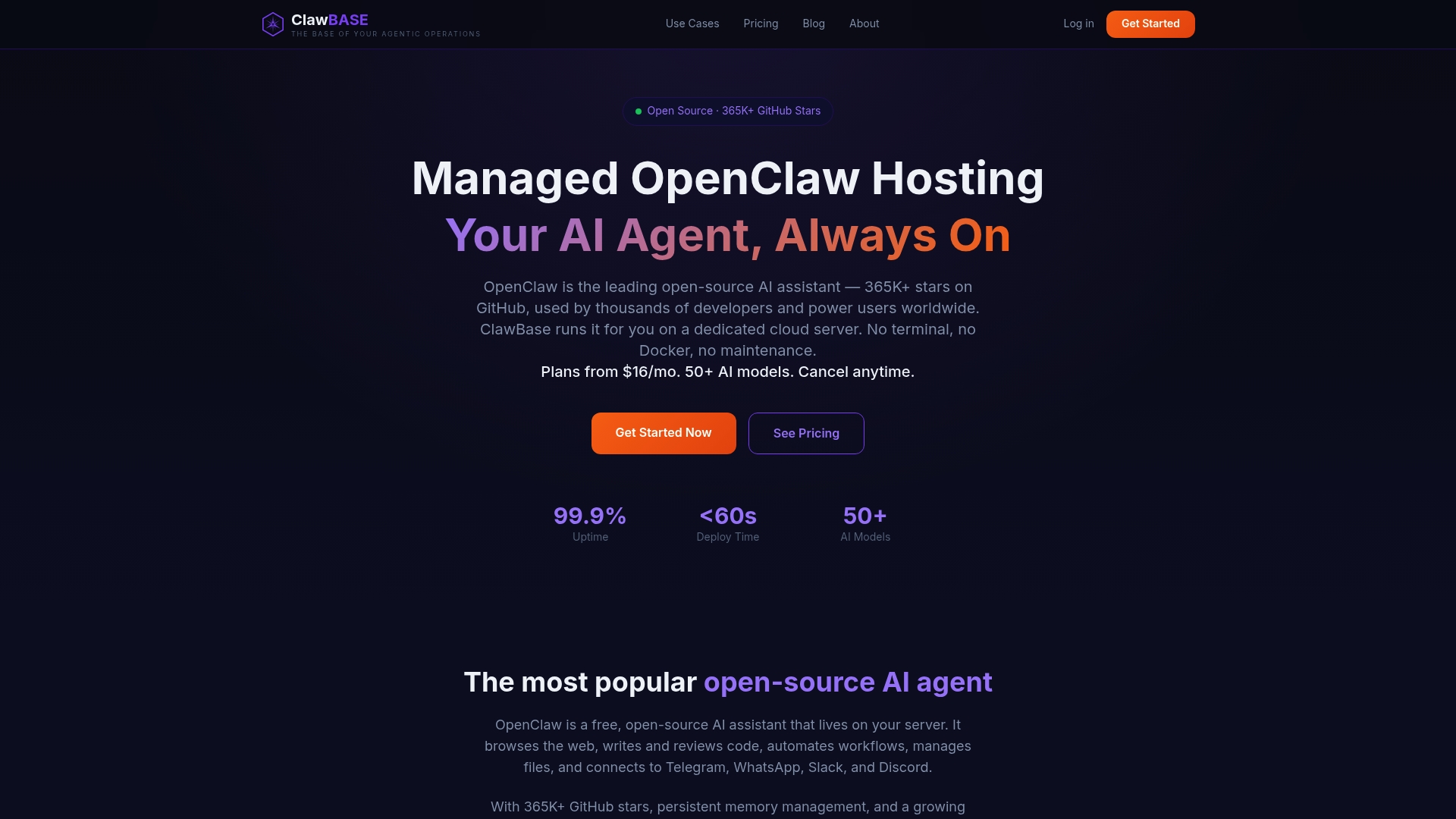
Published prices: LITE is $16 per month or $199 per year, PRO is $33 per month or $399 per year, and MAX is $66 per month or $799 per year. You can pay by credit card or cryptocurrency. See the plans on the pricing page, and the setup tutorial shows how to configure your agent after deployment.
Our perspective
> We think of an assistant's memory as layers, much like a human brain: what happened today, what you told it last month, and the standing rules you never want to repeat. Email triage lives in that last layer. A category list, a VIP list and a "when unsure, ask me" rule are exactly the kind of durable instructions that make an assistant useful instead of merely clever.
>
> That is why we built ClawBase around a dedicated, always-on OpenClaw server rather than a shared tool. Your agent keeps its memory, runs when you are away and reaches you in the apps you already use. You get that without maintaining a server, and with encrypted storage and daily encrypted backups behind it.
>
> Our advice is the same one we follow: start small, write your rules down, review weekly, and widen the assistant's authority only as it earns it. Treat the model as a table-stakes ingredient and your rules as the part that makes the system yours.
>
> *Iosif Peterfi*
FAQ
Is AI email triage the same as a spam filter?
No. A spam filter decides whether a message is legitimate. Triage goes further: it categorizes the message, judges how much attention it deserves right now, and can summarize or draft a reply. Filtering is one layer of the stack, not the whole of it.
How long before the sorting is accurate?
Expect a few weeks. Systems that learn from your behavior improve as they see how you treat similar mail. You can speed this up by defining categories clearly, adding VIP rules and correcting mistakes during your weekly review.
Can the AI reply to emails for me?
It can draft replies, and that is the safest way to use it. Keep sending under your control, especially for anything involving money, contracts or private data. Add automatic sending only for low-risk, repetitive messages after weeks of reliable drafts.
Is it safe to give an AI assistant access to my inbox?
It can be, if you limit permissions, check what the tool stores and whether it trains on your mail, and keep human approval on sensitive actions. If you handle client or regulated information, choose a setup with a dedicated, encrypted environment and review the activity logs regularly.
What should a student set up first?
Four labels: reply, deadline, reference and noise. Turn the reply and deadline labels into a short list tied to the original messages, and check the noise label weekly so a message from an advisor or financial aid office is never buried.
Sources
- Prioritize my inbox, Microsoft Support
- Get started with Google Workspace Studio, Google Workspace Help
- Automate Work with Google Workspace Studio, Google Skills
- 9 Easy Steps To Organize Your Emails With An AI Agent, Forbes
- Build an AI Email Triage Agent, Nylas CLI
- Should You Let an AI Agent Manage Your Business Inbox?, Bitdefender
- Gmail access and AI privacy settings, PCWorld
- AI Email Triage: What It Is and How It Works
- What Is AI Email Triage and How Does It Actually Work
- AI for Email Marketing: Four Week Pilot
- AI Support Customization: What to Configure First